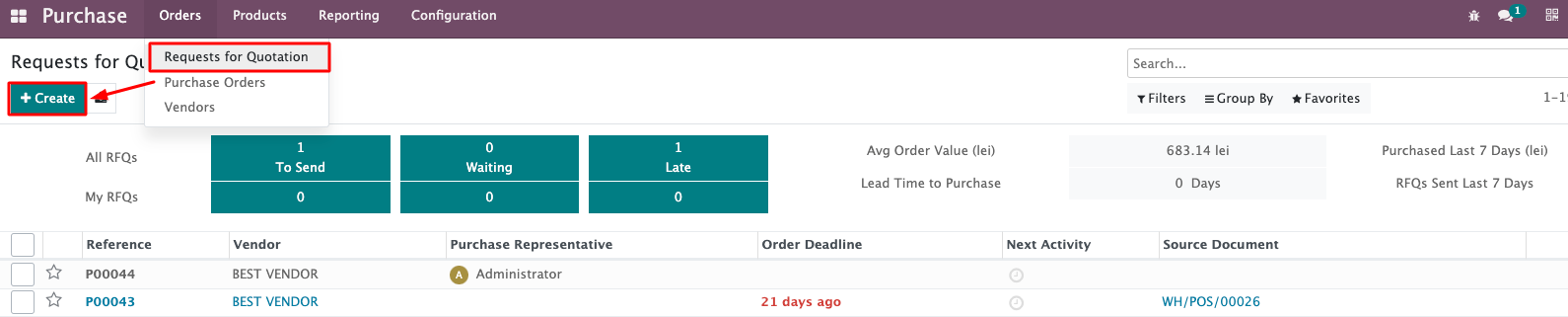
Create Request for Quotation
Purchase App > Orders > Requests for Quotation > Create
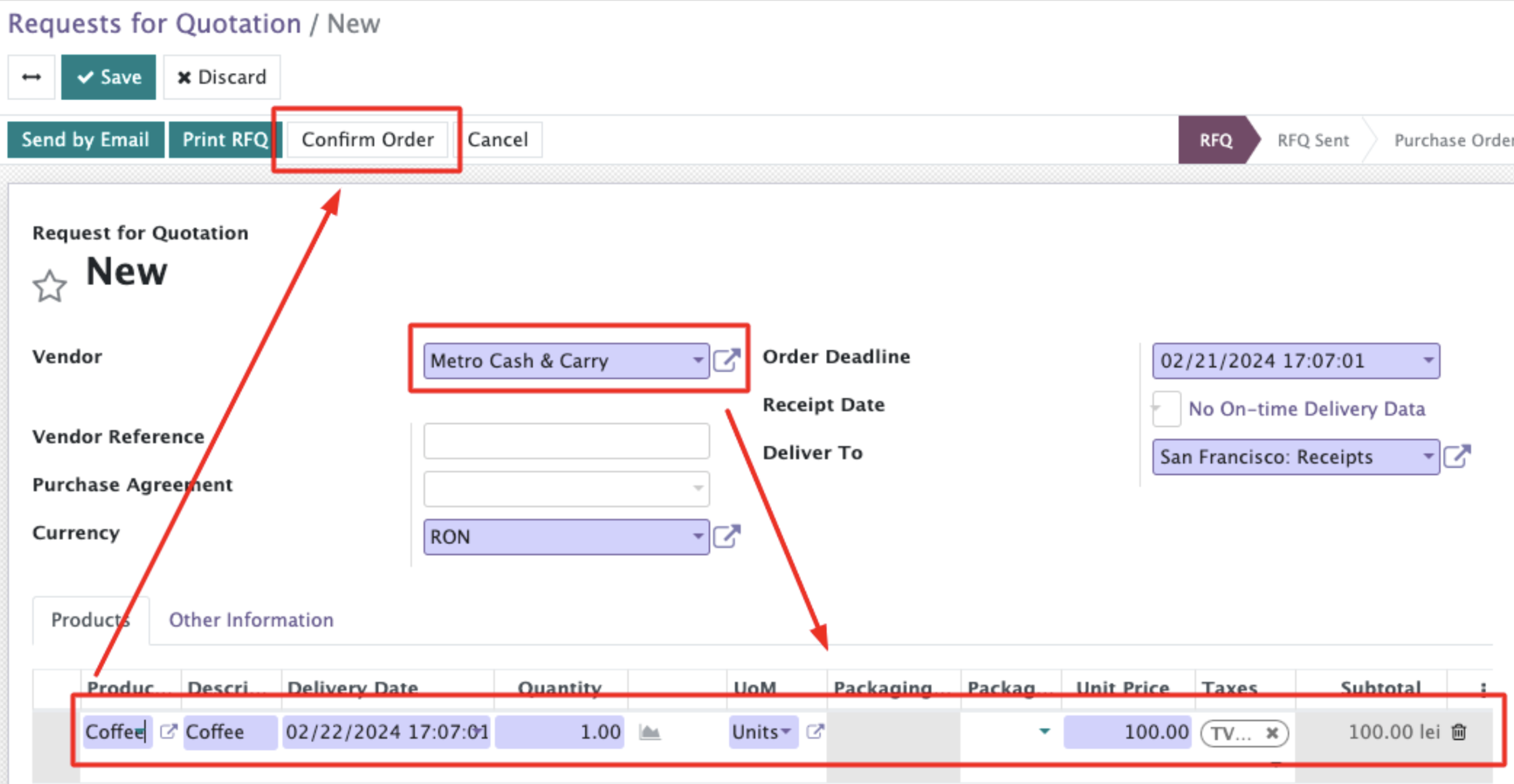
Request for Quotation form view will be opened, here:
- Add the Vendor from the list.
- Add the product (IMPORTANT! Only products that “Can be purchased”).
- Set the quantity of the Products based on their Purchased UoM.
- Press “Confirm Order”.
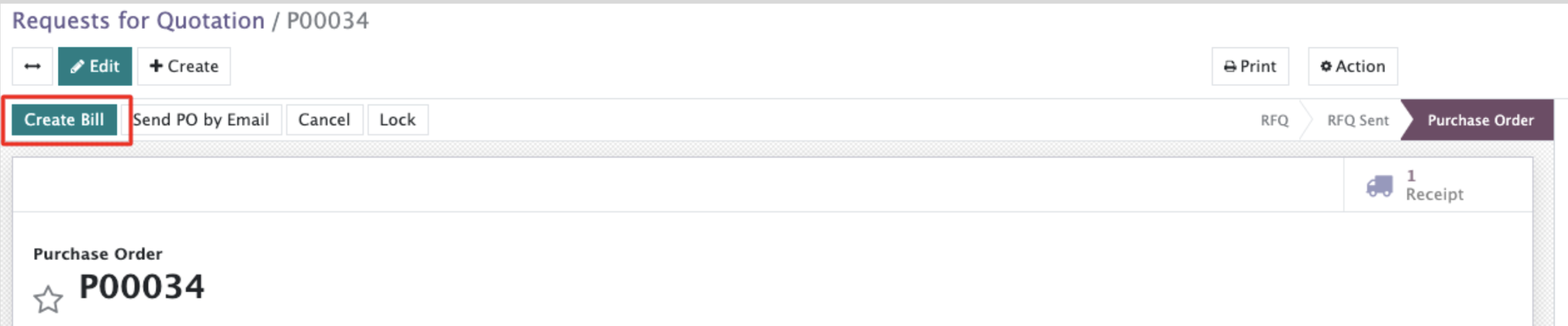
After pressing ‘Confirm Order” we will see that RFQ has a status of the Purchase Order now:

If you try to click “Create Bill” at this step, you will get an error message:

It happens, because we chose the Vendor Bill creation based on the received quantities in the Purchase Tab of the Product Template in the previous chapter.
So we have to receive all the quantities in order to create a bill.
Click 

And click “Validate” after.
After the products are received we can create a Bill.
Input the date of the Bill > Confirm > Register Payment.
In case we don’t put the date of the Bill, we will get a warning:

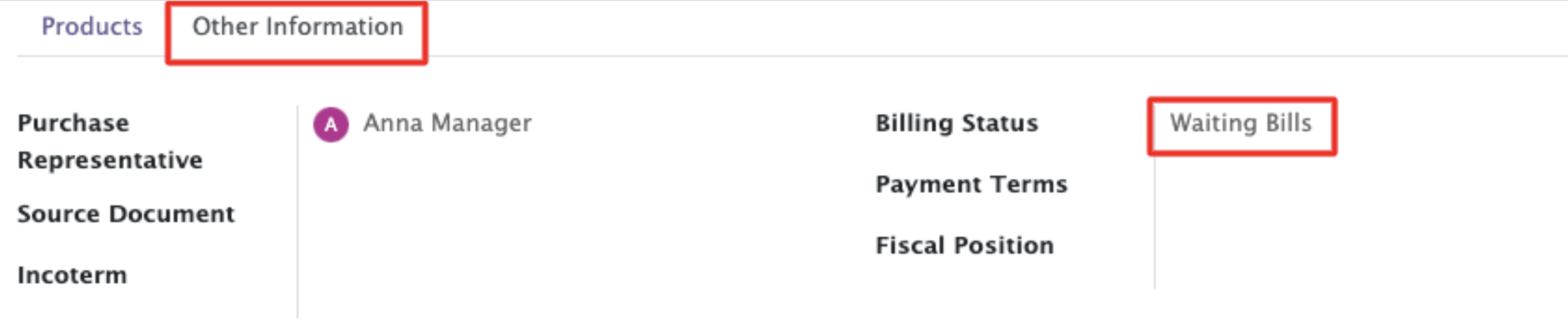
If you need to check POs waiting for the Bills payed:
Check “Other Information” tab at the PO form, there are some “Waiting bills” at the Billing Status:
Click button 
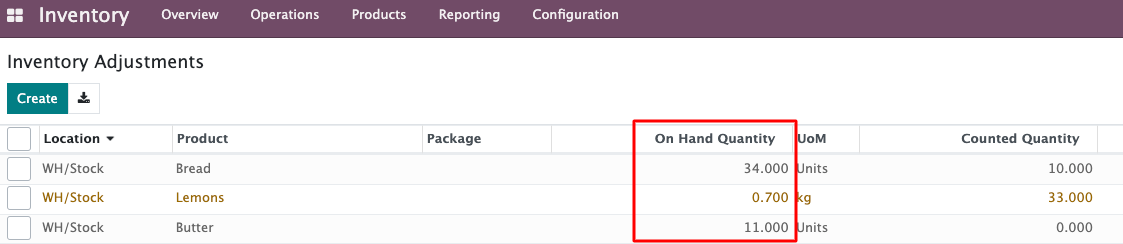
After the Purchase was proceeded - check the products at the Inventory:
Inventory app > Operations > Inventory Adjustments
Here the column “On Hand” will show if the Products appeared on stock